A dead smart lock battery never announces itself at a good time. Maybe the low-battery alert came through three Sundays ago. You saw it, made a mental note to pick up AAs, and then didn’t. Tonight the keypad won’t even light up. Swapping the batteries would take ten minutes if you had them on hand. What actually happens next, the scramble for a workaround, the neighbor’s house, the locksmith’s after-hours rate, tends to take much longer.
What follows is a walkthrough: warning signs first, then emergency access when a keyless lock battery is already dead, then the post-swap tests. That last part gets skipped constantly, and it’s often the reason people end up replacing the same batteries twice in two months.
How to spot a low-battery warning before it becomes a lockout
Most smart locks give you several weeks of advance notice before the battery gives out entirely. The signals vary by brand, and some are easier to miss than others.
A few signs worth watching:
- Sluggish keypad response. Press a button and the backlight hesitates. Or the deadbolt takes an extra half-second to retract. It feels like a software glitch, but nine times out of ten the battery is the cause. On some Wi-Fi smart locks, this slowdown tends to appear well before the app ever sends a formal low-battery alert.
- Repeated beeping during lock or unlock cycles. The sound a smart lock low battery alert makes is distinct from the normal confirmation chirp. On some models it’s a single beep per cycle; on others, a rapid series of tones after each lock or unlock. Some models skip the audio entirely and use a flashing LED indicator. Knowing what your particular lock does ahead of time saves confusion when the alert actually fires.
- App push notifications. The lock app sends a “low battery” push notification. You glance at it between emails and swipe it away. Four weeks later the keypad is unresponsive and you have no memory of whether you replaced the batteries or not. Treat that first alert the way you would a chirping smoke detector: act within the week. Waiting for a second reminder is how most preventable lockouts begin.
A monthly battery check through the lock’s companion app takes under a minute and catches gradual decline well before a formal alert fires. Anchor that check to a date you already pay attention to. A utility bill due date or a rent payment day works well because it already has a spot on your calendar.
Note: Wi-Fi smart locks go through batteries faster than Bluetooth or Z-Wave models because they hold an active network connection around the clock. In practice, a Wi-Fi lock on the same door where a Z-Wave lock would last a full year might need a smart lock battery replacement every four to six months.
Emergency power options that buy you time
When the battery dies before you get to it, most smart locks still offer at least one way to power the electronics temporarily from the outside.
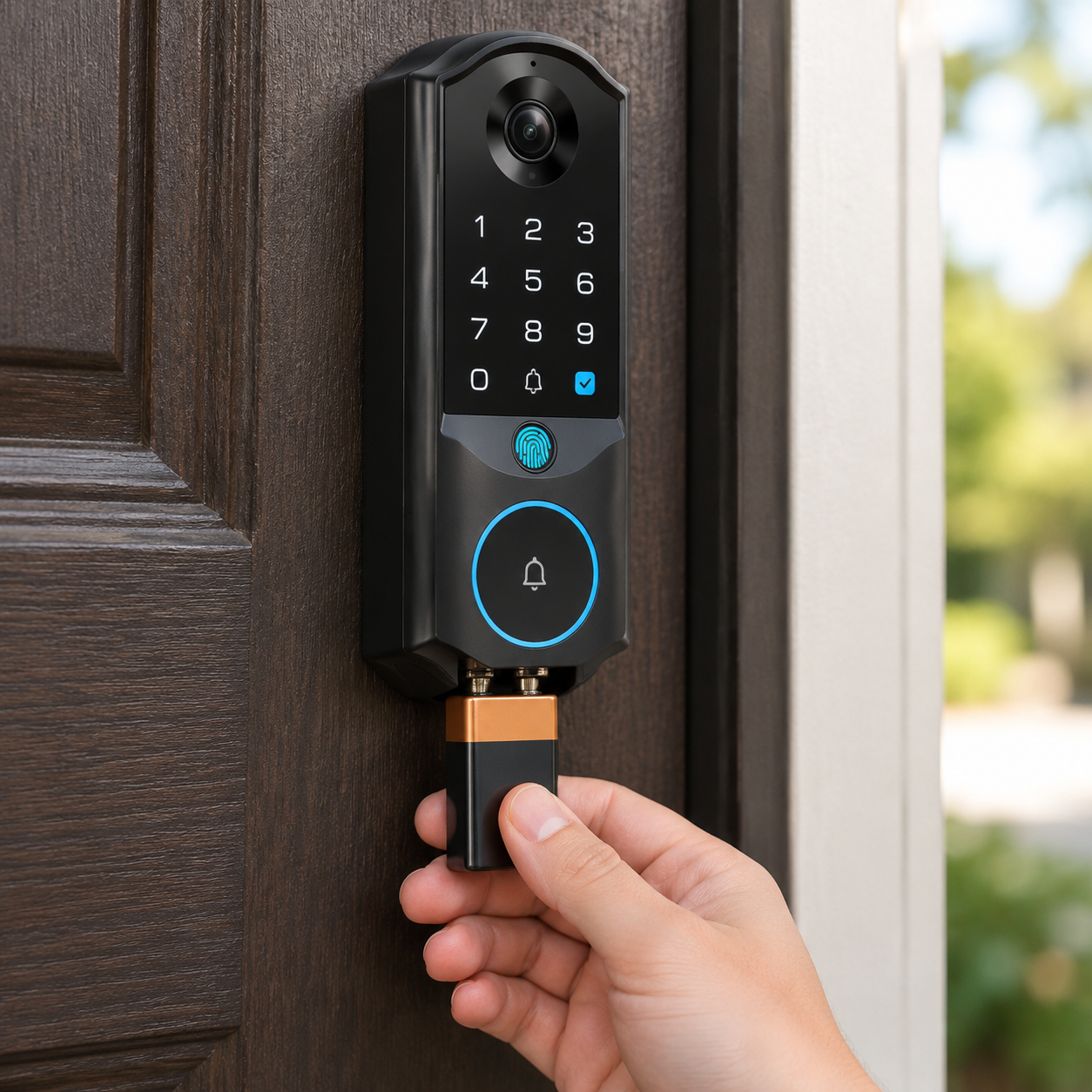
9V battery jumpstart
Many keypad locks have two small metal contacts on the exterior, usually along the bottom edge of the housing. A standard 9V battery pressed against those contacts provides just enough current to wake the keypad, accept a PIN, and retract the bolt.
A few things to know before you try this:
- Hold the battery firmly against the contacts while you type your code. Release too early and the lock powers down mid-entry.
- Have your access code memorized or on your phone before you start. Trying to recall a six-digit PIN while pressing a battery against a lock with one hand is harder than it sounds.
- Not every model includes these contacts. Check your lock’s manual ahead of time so you’re not searching for contacts that don’t exist during an actual lockout.
USB emergency port
Newer locks increasingly include a USB-C or micro-USB port on the exterior, often behind a small rubber flap at the bottom of the lock body. Plug in a portable power bank, wait a few seconds for the lock to boot, then unlock with the keypad, a fingerprint, or the app.
This method is more forgiving than the 9V approach. You don’t need to hold anything in place while typing, and it works better in rain or cold weather where grip is limited.
| Emergency method | What you need | Works without a valid PIN? |
| 9V battery jumpstart | Fresh 9V battery | No, requires a valid access code |
| USB emergency port | Power bank + matching cable | No, requires a valid code or biometric |
| Physical key | Backup key | Yes, bypasses all electronics |
Worth noting: emergency power only restores electronic access. If you’ve forgotten your PIN and don’t have biometric unlocking set up, a power bank won’t help. That’s the scenario where a physical key becomes the only option.
Why a physical backup key still matters
Electronic locks are reliable until they’re not. A physical key is the one access method that doesn’t depend on battery level, Wi-Fi signal, app uptime, or firmware versions. It operates the deadbolt mechanically, completely separate from the lock’s electronics.
The difficulty isn’t owning a key. Most smart locks ship with at least one. The difficulty is keeping it somewhere you can actually reach when you need it.
A few storage principles that hold up:
- Don’t keep it inside the house. A key in your kitchen drawer is useless when you’re locked outside.
- Give a copy to someone nearby. A neighbor, a family member who lives within driving distance, or a building manager. Make sure they know it’s specifically for your front door and where they stored it.
- Skip the fake rock. A wall-mounted combination key safe is more secure and more reliable. Install it out of direct sight, and set the combination to something different from your lock’s PIN.
For renters: some leases have a clause requiring all keys to be returned at move-out, and a few landlords treat unauthorized copies as a lease violation. Worth reading the fine print before you hand one to a neighbor.
Note: If you start using the physical key every day instead of the keypad or app, the lock stops logging who entered and when. Auto-lock timers also stop working because the mechanical turn bypasses the electronics entirely. Relying on the key once during a lockout is reasonable; switching to it full-time defeats the purpose of owning a smart lock.
How to replace smart lock batteries and retest the lock
Open the interior panel, pull the dead batteries, put fresh ones in. Two minutes, maybe three. The part that trips people up comes after. A lock that lost power for a day or two usually reconnects to Wi-Fi on its own. One that sat dead for a couple of weeks is a different story. Some models will hold Wi-Fi credentials through a short outage but drop scheduled auto-lock rules after a longer one. Fingerprint data tends to survive in most cases, though locks running older firmware may require re-enrollment after extended power loss. Check your model’s support page to know what to expect.
A post-replacement sequence that catches the common issues:
- Replace all batteries at once. Don’t mix old and new cells, and stick to one brand. If the lock takes four AAs, swap all four.
- Use lithium AAs in extreme climates. Standard alkaline batteries lose capacity below freezing. Lithium cells handle a wider temperature range and tend to last longer in locks that draw power frequently.
- Test the keypad. Try your PIN a couple of times, locking and unlocking. If there’s any delay or the confirmation tone sounds different from what you’re used to, pull the batteries and reseat them before moving on.
- Test biometric access. If the lock supports fingerprint or face unlock, run through each enrolled profile to confirm recognition still works.
- Check the app. Open the companion app and look for three things: the lock showing “online,” a full (or near-full) battery indicator, and your automations (auto-lock timer, scheduled access codes) still in place. If anything dropped, re-enable it now while you’re thinking about it.
- Test the deadbolt physically. Close the door, trigger the lock, and watch the bolt travel. Full extension into the strike plate, no grinding, no stalling. If it stops an eighth of an inch short, the issue is almost never the lock itself. Wood doors swell in humid months and shrink in dry ones. That fraction of misalignment forces the motor to push harder, and the difference in battery draw adds up over hundreds of daily cycles.
New batteries draining in half the advertised time is a familiar complaint in smart lock forums, and the answer is rarely “bad batteries.” Wi-Fi signal at the door is the first variable to rule out. A lock installed 30 feet from the router with two walls in between may cycle its radio dozens of times a day trying to hold a connection. Each drop-and-reconnect event draws power, and over a week those micro-drains add up even if nobody touches the door. Next, inspect the strike plate alignment. A bolt that has to force its way into the frame increases motor current on every lock cycle. Finally, verify the firmware version. Certain updates have introduced idle power bugs that surface only after a battery swap. Identifying the root cause before purchasing another set of AAs prevents the same premature drain from repeating.
Building a backup plan for low-battery days
The steps above cover individual tasks. Individually, those steps are easy to forget. Writing them onto one card (or a shared phone note the whole household can see) and checking it once a quarter turns a scattered set of “I should probably do that” tasks into something that actually gets done.
Keep these accessible:
- A portable power bank with the correct cable for your lock’s emergency port (USB-C or micro-USB). Keep it plugged in or topped off. An uncharged power bank at the bottom of a drawer is the same as not having one. Easiest reminder: check it the same day you check the lock battery in the app.
- A fresh 9V battery, if your lock has external jumpstart contacts. A 9V battery holds its charge for years when it’s just sitting in a drawer. Toss one in the kitchen junk drawer or the glove box and forget about it until you actually need it.
Check these quarterly:
- Lock battery level (via the app)
- Power bank charge level
- Physical key location and condition
- Emergency contact details for the person holding your spare key
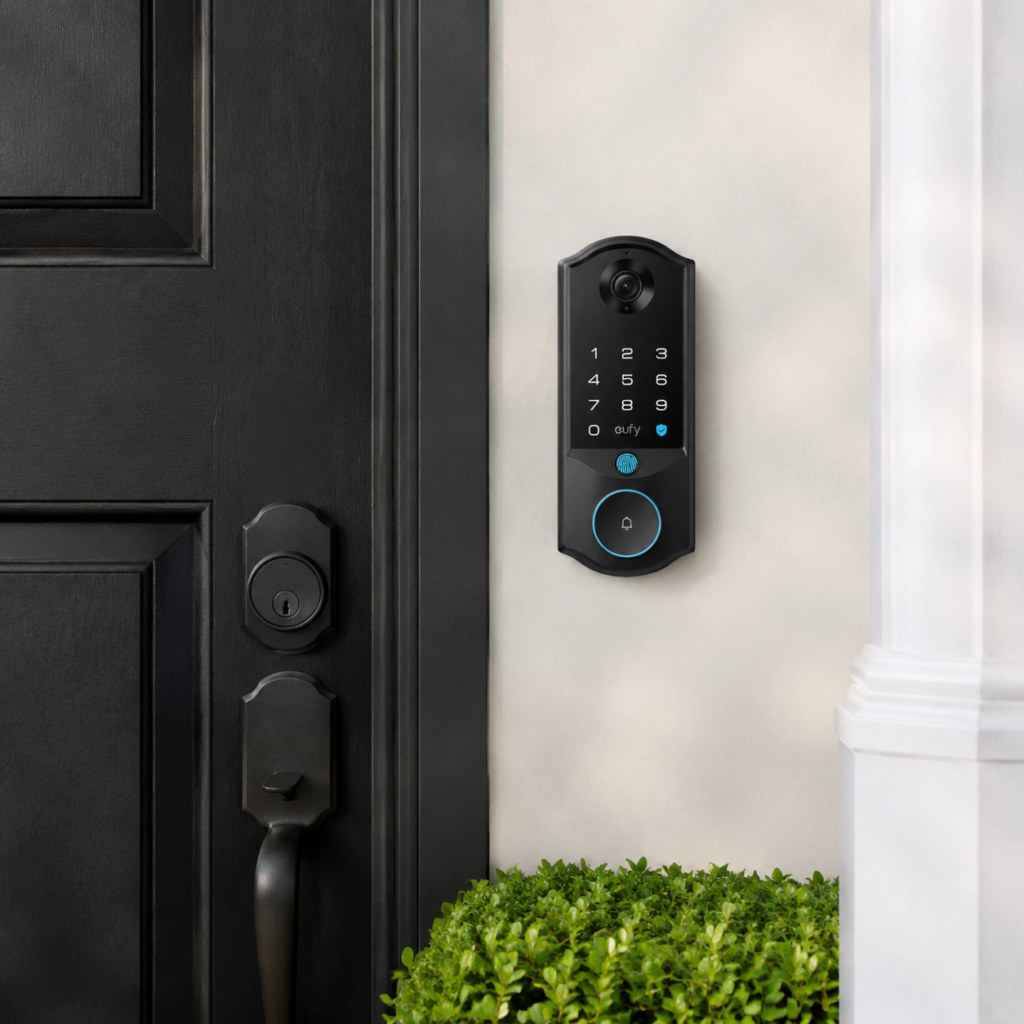
Some newer smart locks reduce how many of these steps you need to manage. The eufy Smart Lock E40 uses a dual power system: a 15,000mAh rechargeable lithium main battery rated for roughly six months of use, plus an 800mAh built-in backup battery that kicks in automatically when the main battery runs low. The gap between “your first low-battery alert” and “fully locked out” is wider than on a lock with a single battery. If both batteries eventually run out, the E40 still supports physical key entry as a final fallback.
That layered setup (primary battery, automatic backup, and physical key fallback) is showing up more often in locks built for front-door use. Even if your lock doesn’t have all those layers, the thinking is the same: every backup method you set up before a lockout happens is one less problem to solve while standing outside.
Conclusion
No one puts “check door lock battery” at the top of a Saturday to-do list. The entire routine takes about five minutes: open the app, look at the battery percentage, confirm the power bank in the hall drawer still has a charge, make sure the spare key is where you left it. That five minutes looks a lot more worthwhile after you’ve spent $150 or more on an emergency locksmith because the keypad went dark during a long weekend away.
Most households already set aside a day for swapping HVAC filters or testing smoke detectors. Daylight saving time works well as a trigger, and so does the first Saturday of each new season. Adding the lock check to that existing schedule avoids creating yet another standalone reminder. One pass through the list, close the app, and the lock is covered until next quarter.
About the Author